 If you’re like us, you rely heavily on Google Analytics to evaluate your website performance and spot opportunities. One challenge we’ve run into lately is how to uniquely track traffic from your Google maps (now known as Google My Business) listing. More specifically, can I differentiate Google My Business clicks to my website from other Google organic clicks?
Currently, if your map listing shows up in search results – either on its own or as part of a “3 pack” – users have the ability to click the “website” button to take them to your website. In most cases, this traffic is tracked the same as any organic traffic. In other words, you cannot distinguish it.
The good news is that there are two simple steps to start uniquely tracking Google My Business traffic to your website…
1) Utilize a UTM (Unique Tracking Module). This is simply a tool that creates unique urls by adding custom parameters at the end. You can use this tool from Tap Clicks or this tool from Google. They both work just fine.
Now, add “googlemybusiness” as the Campaign Source, “Organic” as the Campaign Medium, and “Google My Business” and the Campaign Name. Then you’ll see the unique url that’s automatically created at the bottom. Copy that.

2) Paste that newly created url into your Google My Business website text field. No one will see the actual url since they are clicking a button, and they’ll be driven to your home page.
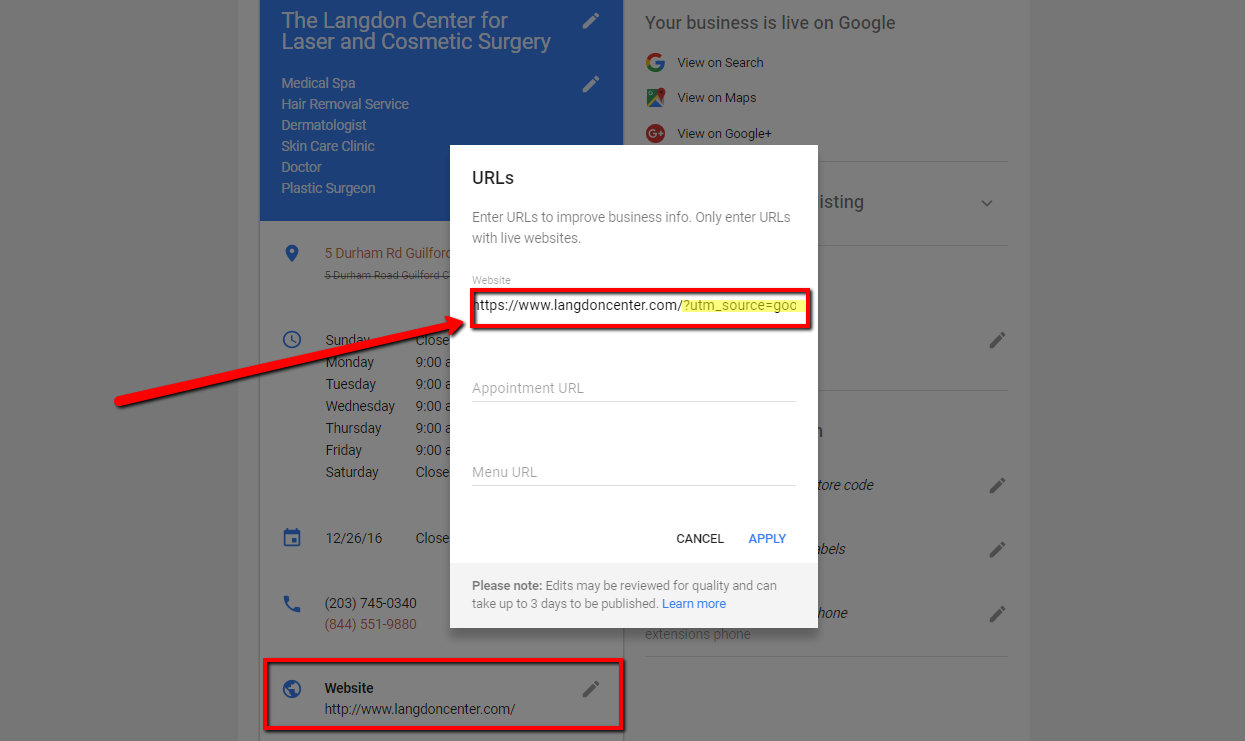
Once you’ve got this all set up you simply need to login to your Google Analytics account and navigate to ACQUISITION > All Traffic > Channels and you’ll then be able to see all your traffic from your Google Maps listing. It’s that simple!
Click here to check out more Google Analytics articles. If you’d like to learn more about our marketing services just shoot us a note here or call 877-673-7096 x2.